

By James · 03/08/2026 · 18 min read
Welcome to closecalltips! Closecalltips is designed to be intuitive, but this user guide walks you through everything you can do on closecalltips.com — from installing the app on your device to competing in prediction games with friends. No prior experience needed.
The guide follows the app’s own menu, so whatever you see on screen you’ll find here under the same name: Dashboard, Bonus, Ranking, Draw, Settings and Rules, plus everything you need to get started and manage your account.
Getting Started
Everything you need before your first prediction — installing the app, creating your account, and setting up or joining a game.
Installing the App
closecalltips is a Progressive Web App (PWA), meaning you can add it to your device like a real app — no app store needed. It works on any modern phone, tablet or computer.
Choose your device:
iPhone & iPad(iOS)
On iPhone (iOS — Safari)
- Open Safari and go to https://www.closecalltips.com.
- Tap the More menu at the bottom of the screen followed by the Share button.
- Tap Add to Home Screen .
- Give the app a name (or leave it as “closecalltips”) and tap Add.
- The app icon appears on your Home Screen. Tap it to open the app in full-screen mode.
💡 Tip: Make sure you are using Safari, not Chrome or Firefox — iOS only supports PWA installation through Safari.
Android
On Android (Chrome)
Most of the time, Chrome offers to install the app for you:
- Open Chrome and go to https://www.closecalltips.com.
- You’ll likely see a banner saying Install closecalltips — tap Install and confirm.
- The app appears on your Home Screen and in your app drawer.
📌 Note: If you don’t see the banner, tap the three-dot menu (⋮) in the top-right corner, tap Install app (or Install and create shortcut), then confirm with Install.
Creating an Account
Registration is quick and takes just 3 steps.
- Click Register in the top navigation bar (or the large Get Started button on the home page).
- Account details: enter your email, choose and confirm a password, tick the box to agree to the Terms of Service and Privacy Policy, then click Next.
- Push notifications (optional): enable notifications to get reminders before matches lock. You can Skip this or click Next.
⚠️ Important: We strongly recommend enabling push notifications. Matches unlock gradually throughout a tournament, and without reminders it’s easy to miss a tipping window. You’ll only be reminded when there’s something left to do – if you’ve already placed all your tips, no notification is sent.
4. Verify your email: enter the 6-digit code sent to your inbox and click Verify.
5. Once verified, click Login to go straight in.
💡 Tip: The verification code expires after 15 minutes. If it expires, request a new one.
Signing In & Out
Signing in
- On a large screen (desktop / tablet landscape): the top bar has email and password fields built in — type your credentials and click Login.
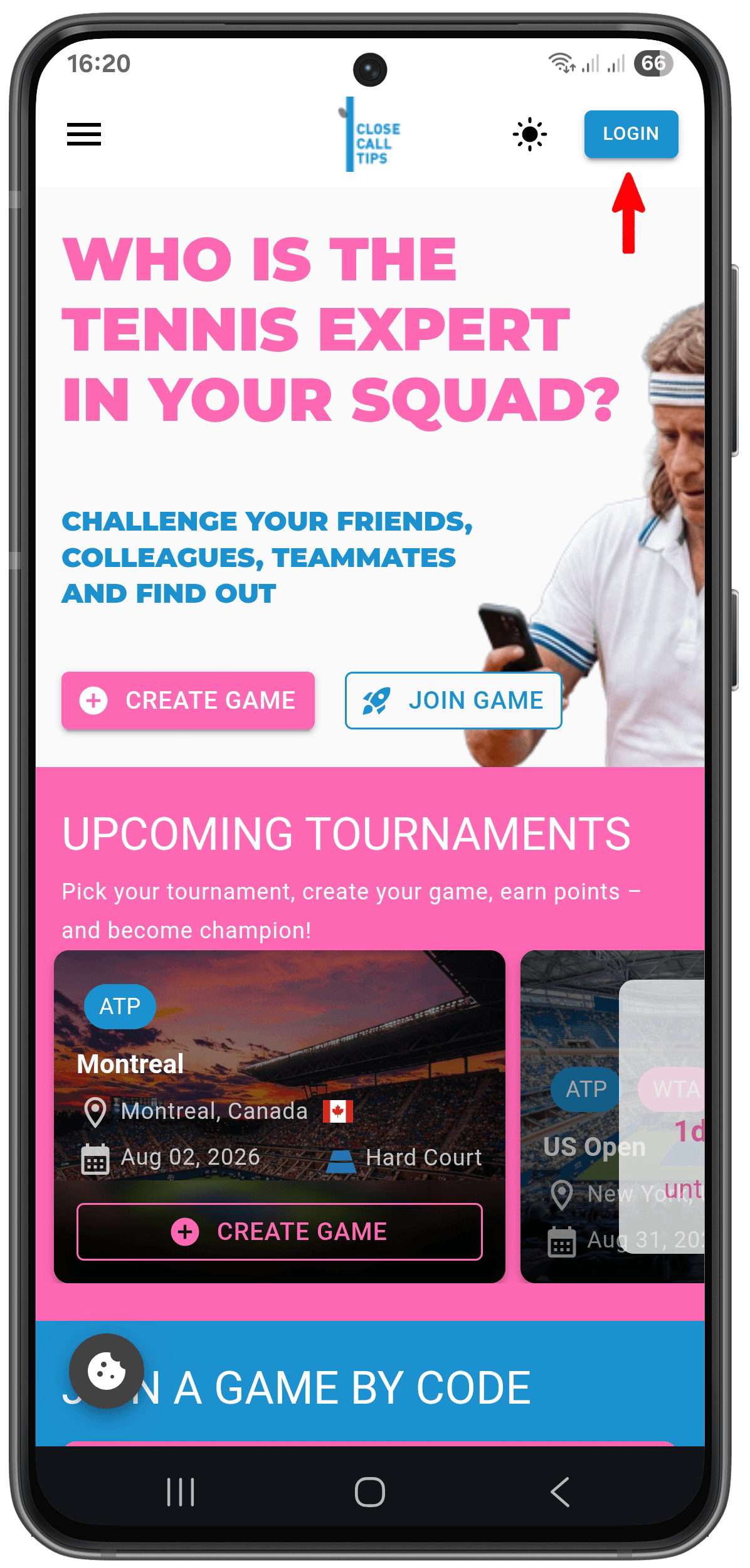
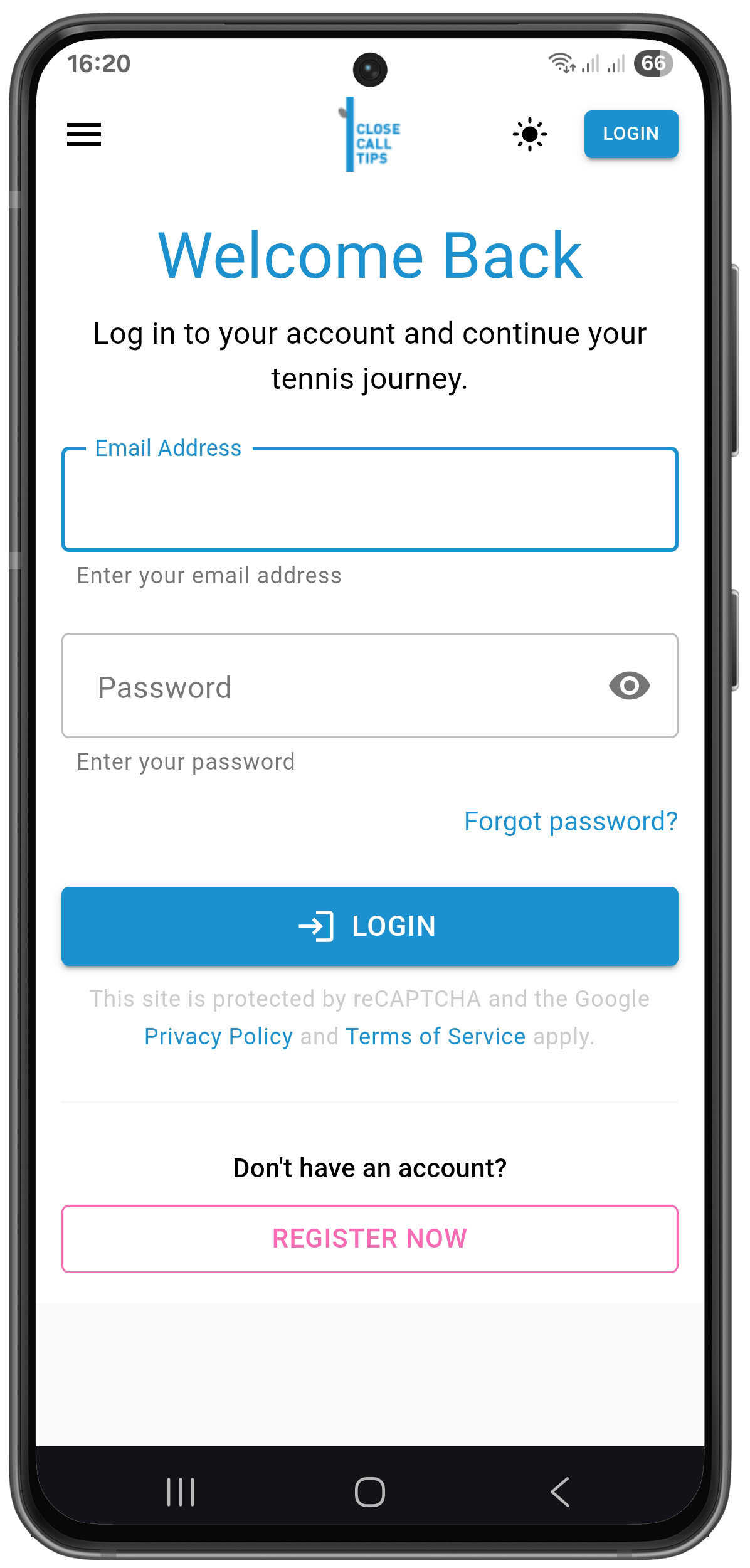
- On a phone: tap the Login button in the top-right corner to open the login page.
- Enter your Email Adress and Password and click Login.
Signing out
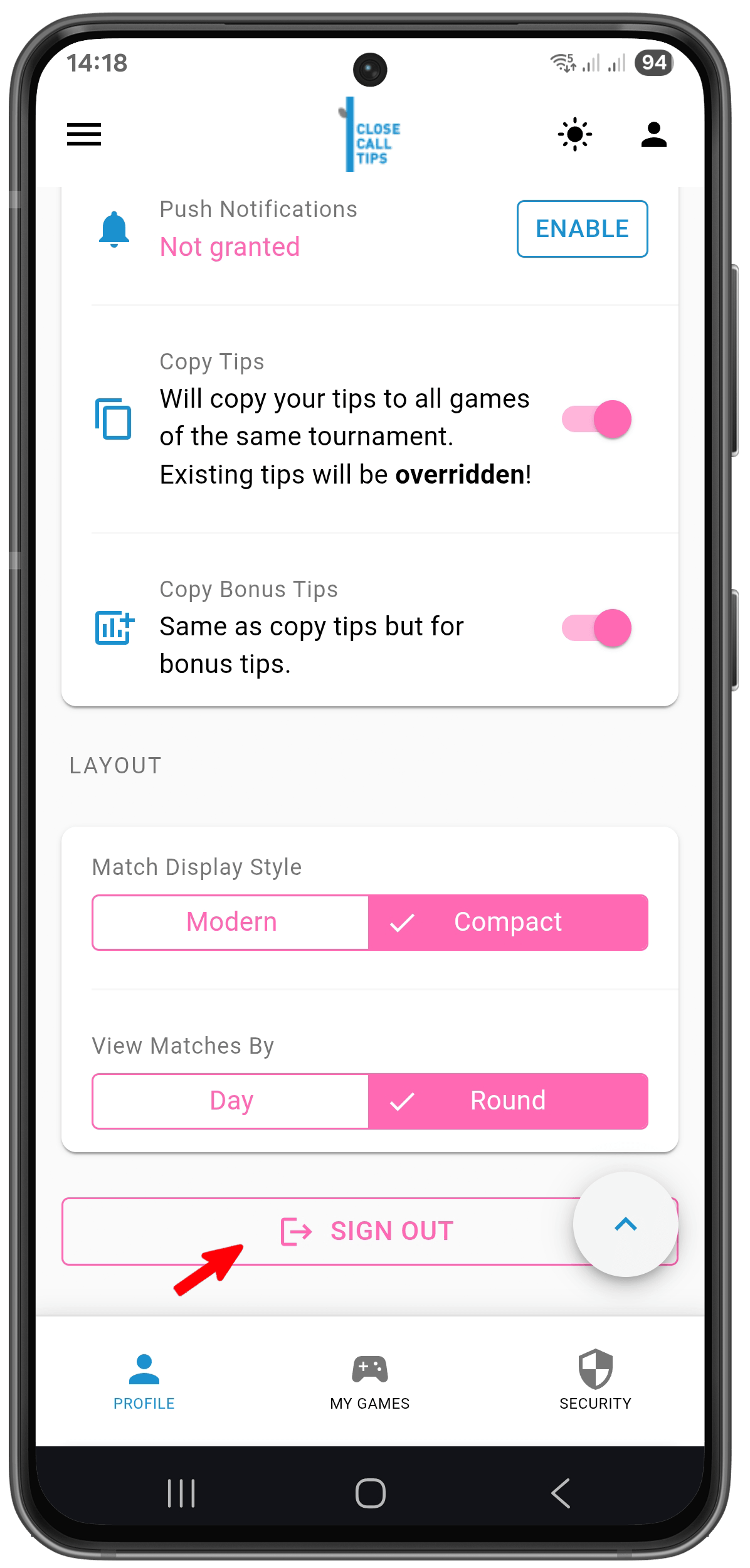
- While logged in, tap the person icon in the top-right corner, then tap Sign Out .
Forgot Your Password?
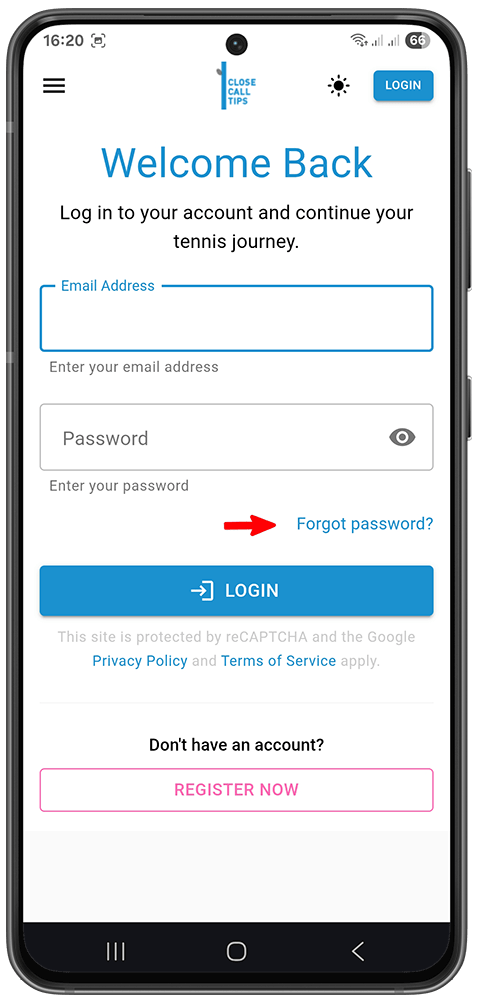
- On the login page, click Forgot Password? (the lock icon, or the link below the password field).
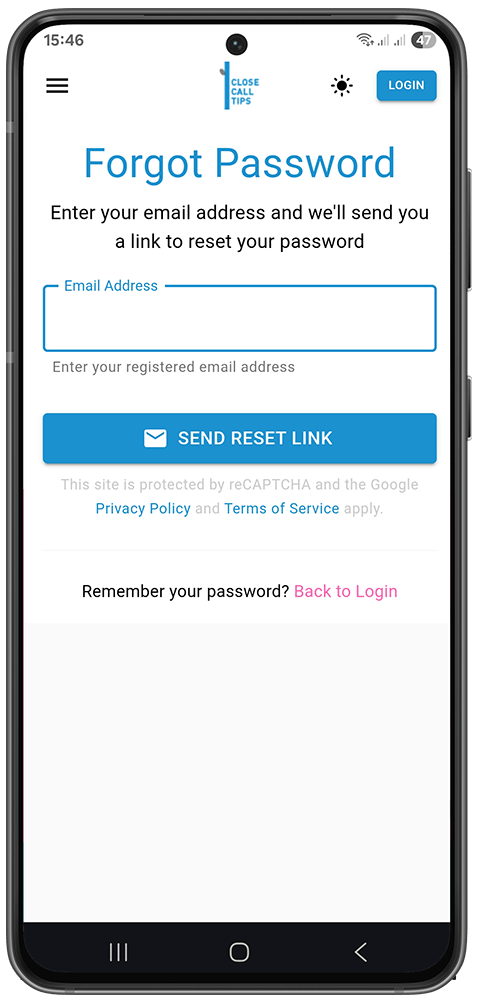
- Enter the email address associated with your account.
- Click Send Reset Link.
- Check your inbox and follow the instructions in the reset email.
Creating Your First Game
You can create a game even if you don’t have an account yet — the app registers you as part of the process. If you’re already logged in, open the Menu in the top-left corner and choose to Create a new game .
- Start a new game (from the home page, or via the Menu when logged in).
- Choose a tournament — select which tennis tournament the game is based on (ATP or WTA).
- Enter a game name and an optional description.
- Choose your nickname for this game (how others see you on the leaderboard).
- Configure the game settings (see below).
- Click Create Game.
Once created, you become the game creator (admin), and an invitation code is automatically generated to share your game with friends.
📌 Note: It’s completely normal to see “No matches found” on your Dashboard at first. Matches appear about two days before the tournament starts, once the draw is set.
💡 Tip: If you’ve enabled notifications, you’ll be alerted as soon as matches become available. games — all user-created games are private and invite-only.
📌 Note: You can create a limited number of games per tournament. Only administrators can create public games — all user-created games are private and invite-only.
Game Settings Explained
As the game creator, you control how points are scored. You set these when creating the game, and you can edit them afterwards — but only before the tournament starts and before anyone places a tip. (see Settings (Admin) — Configuring & Editing the Game).
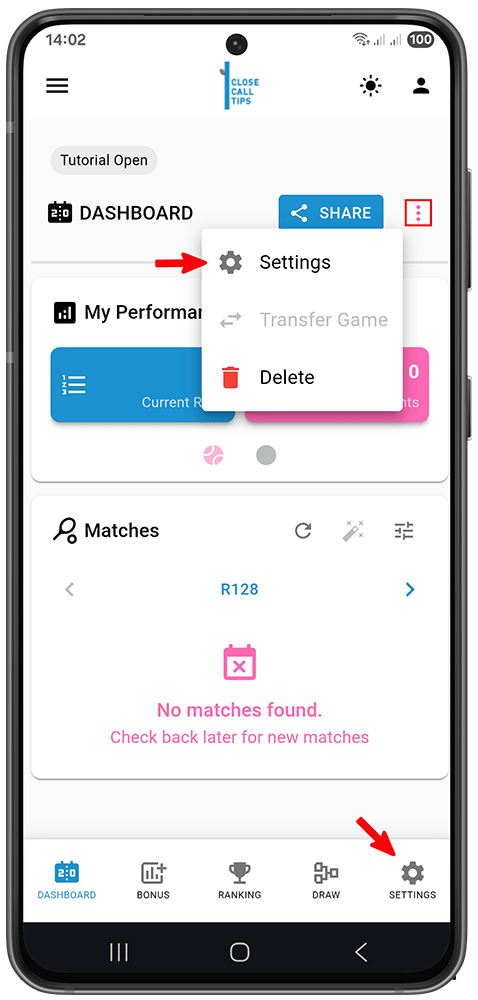
You can open the settings either via the three-dot menu (⋮) in the top-right corner or from the menu bar at the bottom.
General
Game Mode — choose how scoring is configured. In Basic mode, closecalltips default values apply (shown below); in Advanced and Pro you set the values yourself.
- Basic — pre-set scoring values. Great for casual games with friends.
- Advanced — define your own game and scoring settings.
- Pro — complete custom configuration.
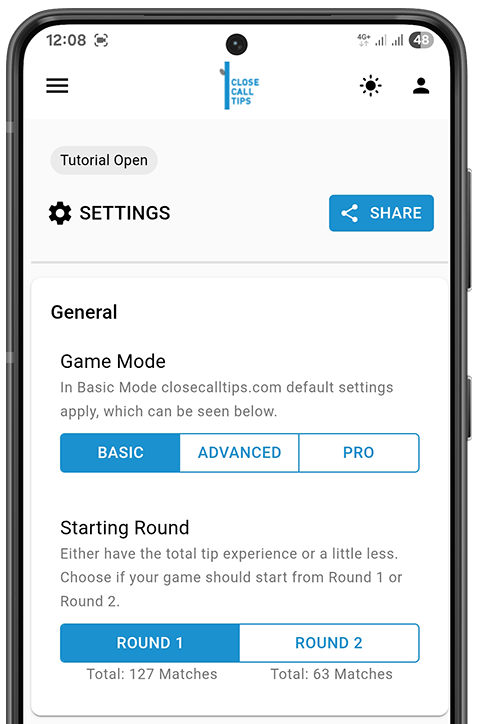
Starting Round — choose whether your game starts from Round 1 (the full tipping experience) or Round 2 (a little less). The app shows how many matches each option includes.
⚠️ Important: Even if you start from Round 2, bonus tips must still be submitted within the Round 1 deadline.
Scoring System
Scoring Mode — how points are applied across the tournament:
- Flat — every round is worth the same number of points.
- Progressive — points increase as the tournament goes on, so later rounds are worth more.
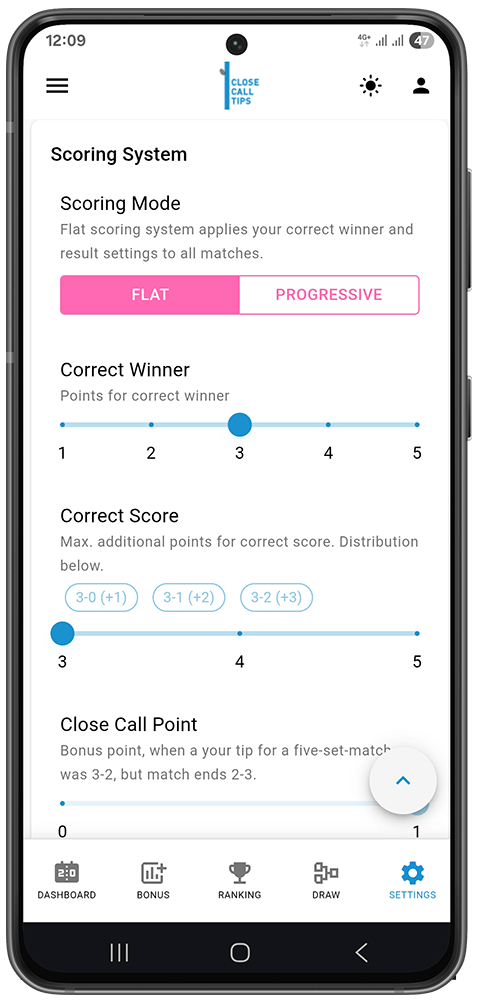
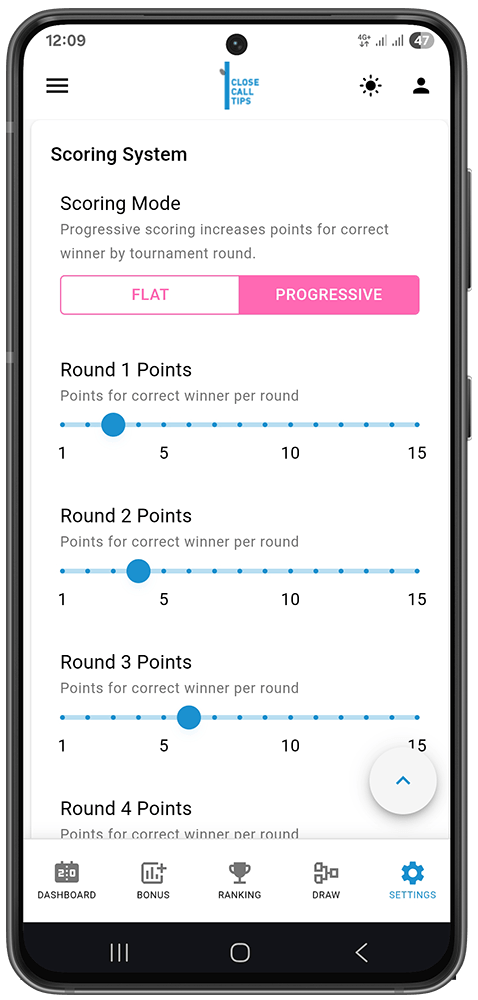
Correct Winner — points for correctly picking the match winner (slider, e.g. 1–5).
Correct Score — additional points for predicting the exact set score, on top of the winner points. The distribution below shows how the maximum is split across scorelines (e.g. 3-0 → +3, 3-1 → +4, 3-2 → +5).
Close Call Point (Grand Slams only) — a bonus point for a very close miss: for example, you tipped 3-2 in a five-set match but it ended 2-3. Toggle on or off.
💡 Tip: Choose Progressive if you want later rounds to count for more and the game to stay open until the end.
Bonus Tips
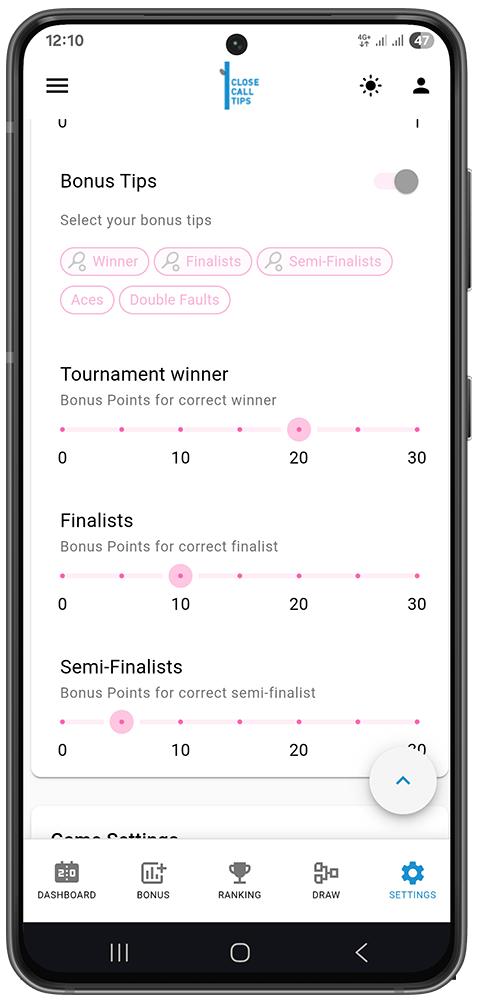
Bonus Tips — toggle the bonus section on or off, then pick which bonus tips count using the chips (Winner, Finalists, Semi-Finalists, Aces, Double Faults). Only chips marked with the racket symbol are active. Each active bonus has its own point value:
📌 Note: Bonus predictions are made before the tournament starts and can earn a lot of extra points.
💡 Tip: If you’ve enabled notifications, you’ll be alerted as soon as bonus tips are available.
- Tournament Winner — points for correctly predicting the champion (default: 20 pts).
- Finalists — points per correctly predicted finalist (default: 10 pts each).
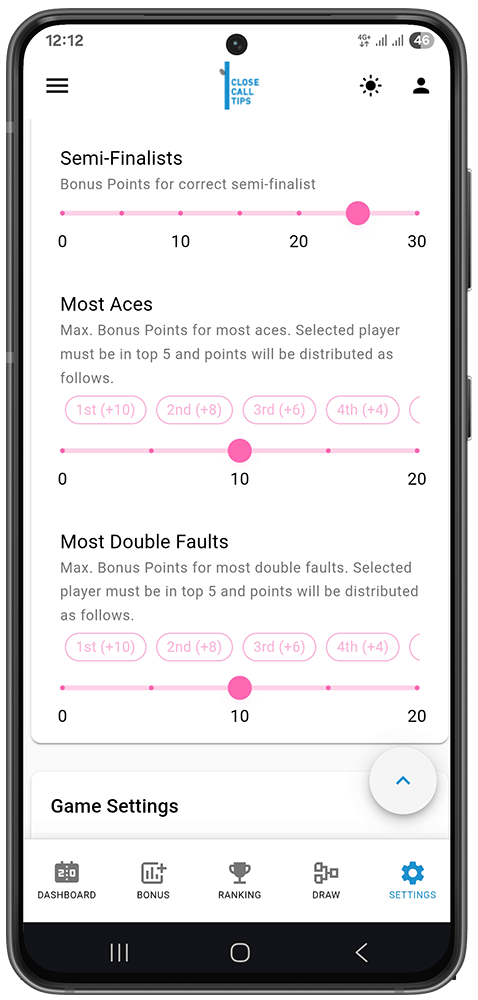
- Semi-Finalists — points per correctly predicted semi-finalist (default: 5 pts each).
- Most Aces (Grand Slams) — bonus points if your picked player tops the aces ranking. The player must finish in the top 5, and points are distributed by position (1st +10, 2nd +8, 3rd +6, 4th +4, 5th +2).
- Most Double Faults (Grand Slams) — same as Most Aces, but for the double-faults ranking.
Game Settings
Game Name — the name of your tip game (up to 45 characters).
Max Participants — optional limit on how many people can join. Leave blank for unlimited.
Allow Late Join — if on, players can join after the tournament has started (they won’t earn points for matches already played).
Joining Games
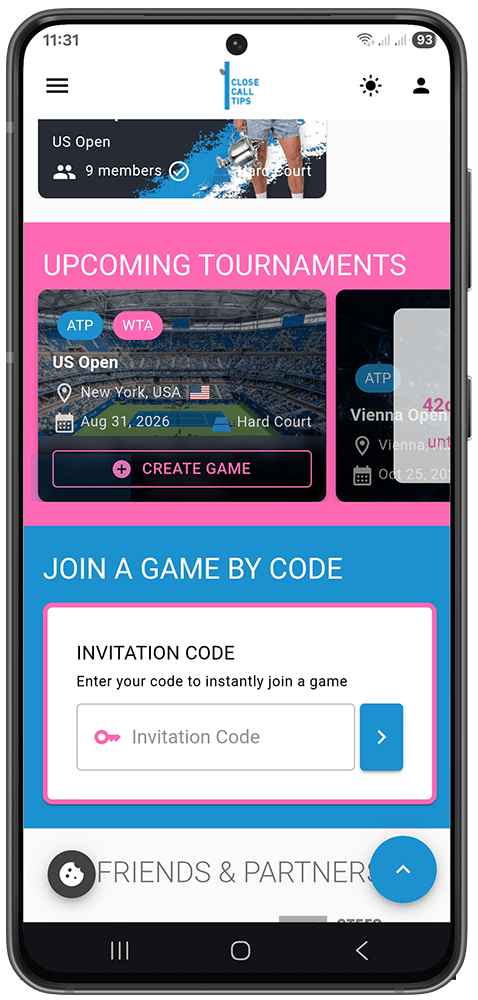
Via invitation code
- Get the invitation code from the game creator (it looks like ABC12345).
- On the home page or the /join-game page, find the Join a Game section.
- Type the code into the box and click Join Game.
- If you’re logged in, pick a nickname and confirm. If not, you can register right there as part of joining, then verify your email to complete it.
Via invitation link
The creator may share a direct link (e.g. closecalltips.com/join/ABC12345). Opening it takes you straight to the join screen.
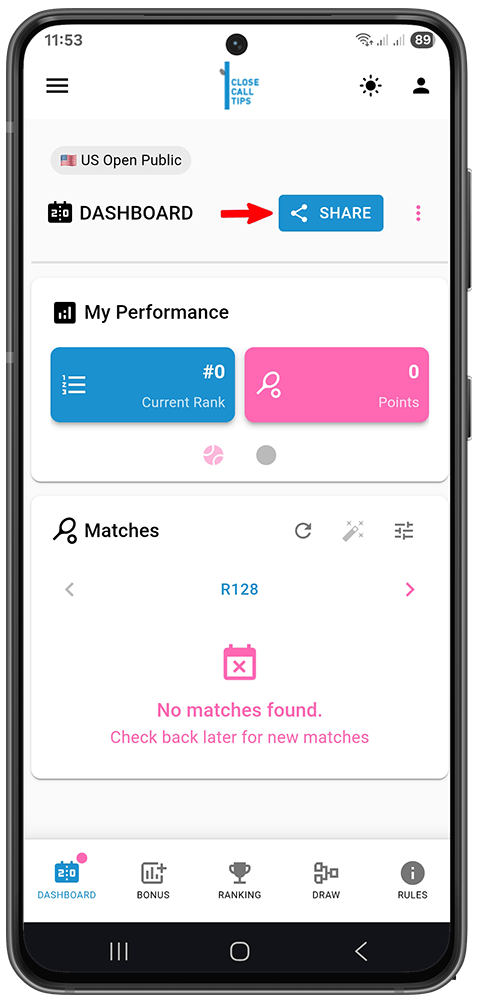
Once in the game, any user can invite friends. Just hit the share button in the dashboard, choose the app you want to share through, pick the contacts you want to invite, and send the link. Your friends will be taken directly to the game.
Public game invitations
Public games are mostly created by closecalltips.com itself, usually during Grand Slam tournaments. You can find them directly on closecalltips.com and join there, or you can find the join codes in the tournament-specific posts on Instagram. Follow @closecalltips to stay up to date.
Root for the players instead of just watching?
Create a free prediction round, bring your friends along, and predict your way through the whole tournament — set by set, round by round. Climb the leaderboard, talk some trash, and see who really knows their tennis.
Your tournament starts now.
And keep an eye out for our public games — join in and win fancy prizes.
Prove that you’re the expert.
Dashboard
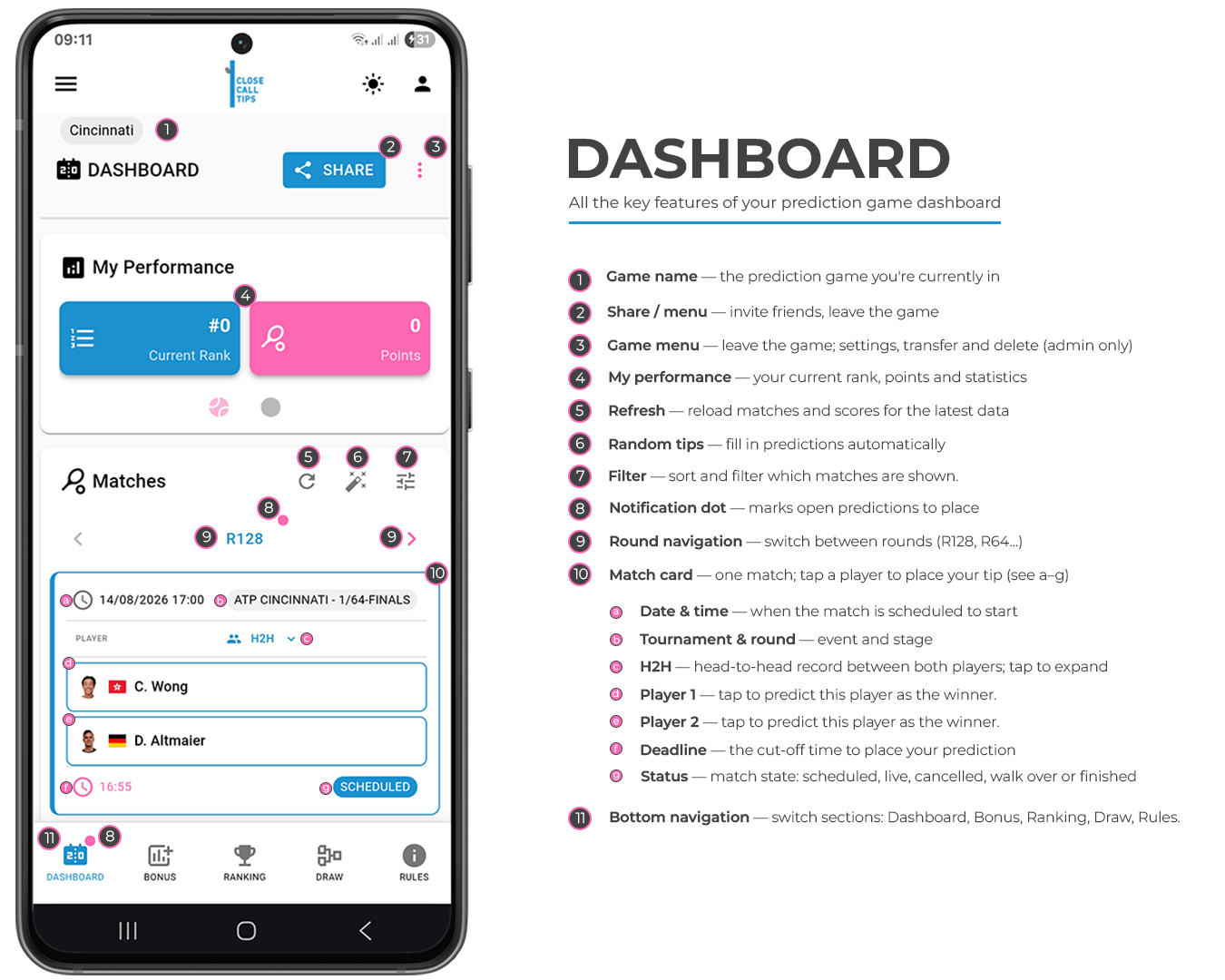
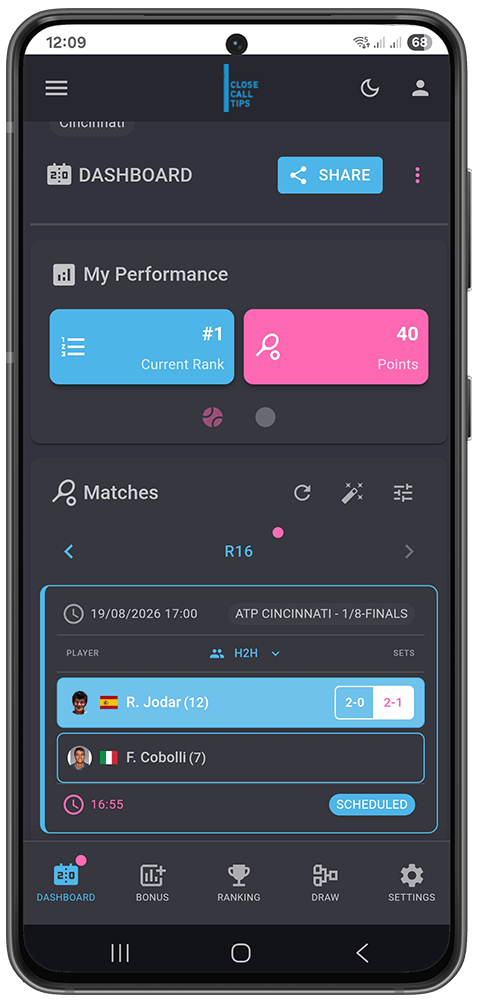
The Dashboard is your home base inside a game. Going down the screen, you’ll find the game header, your performance, the match list where you place your tips, and the tools around it.
Game Header
At the top you’ll find the game name (so you know which game you’re in) and, on the right, the Share button and the game menu (⋮). Tap Share to invite friends (see Sharing Your Game). The game menu is mainly for leaving the game, or, for admins, transferring and deleting it (see Settings (Admin)).
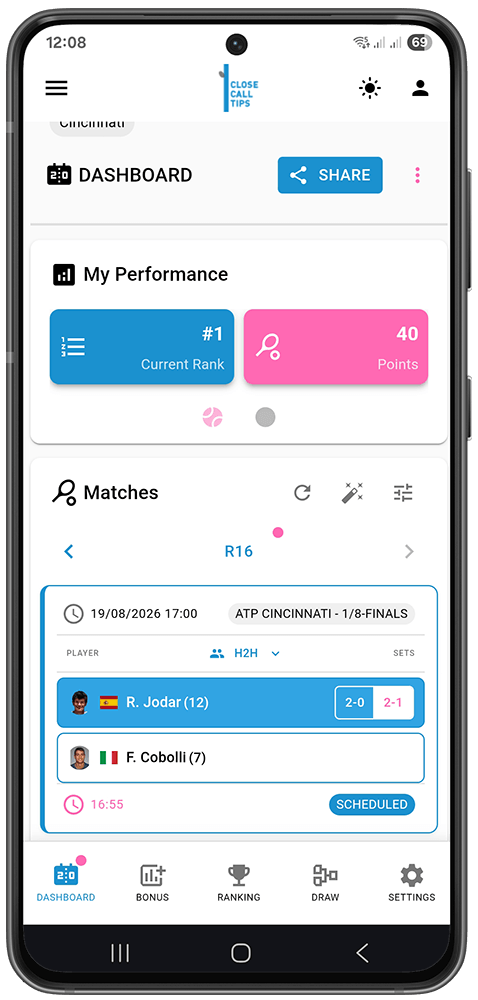
My Performance
Inside every prediction game, the My Performance card gives you a quick overview. On mobile the tiles are split across swipeable pages; on desktop they’re all visible at once.
- Your Rank — your current leaderboard position (e.g. #3). After the tournament ends this becomes Final Rank. Tap to jump to the full leaderboard.
- Your Points — total points accumulated so far.
- Accuracy % — toggle by tap or swipe between Winner Accuracy (how often you predicted the winner correctly) and Result Accuracy (how often you predicted the exact set score).
- Prediction Breakdown — cycles through Correct Result (exact set score right), Correct Winner (winner right, score off), Close Call (Grand Slams; close-call bonus earned) and Incorrect (simply wrong).
💡 Tip: You can change your tip any time before the deadline (usually a few minutes before the match is scheduled to start).
Placing Match Tips
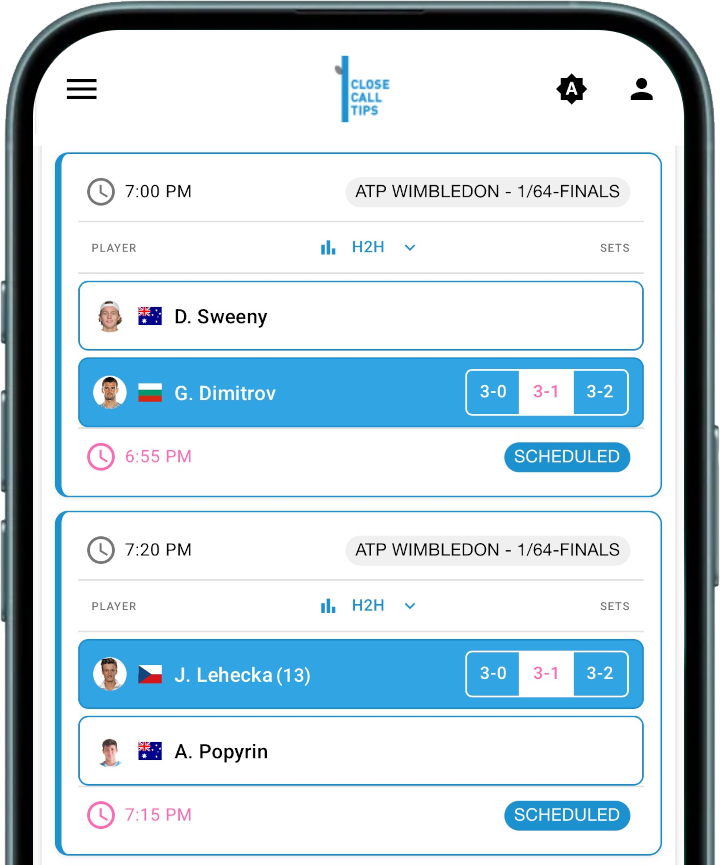
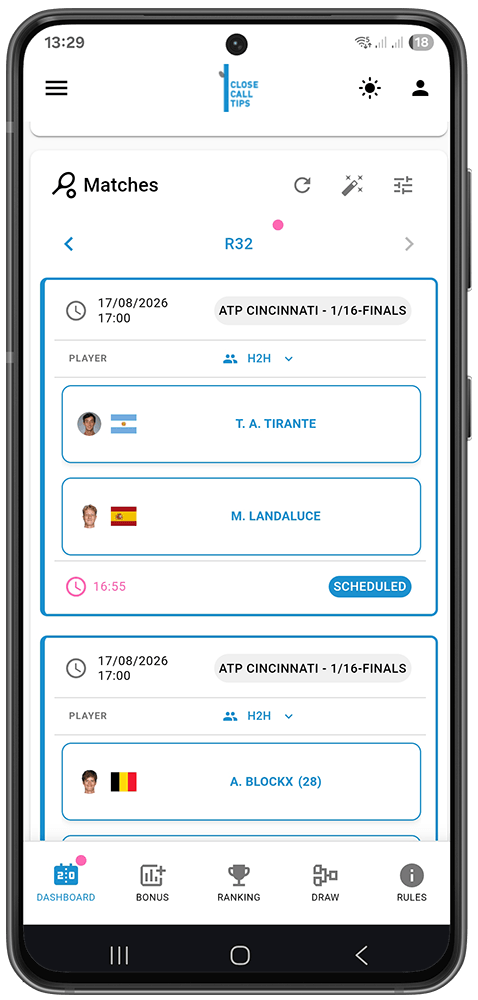
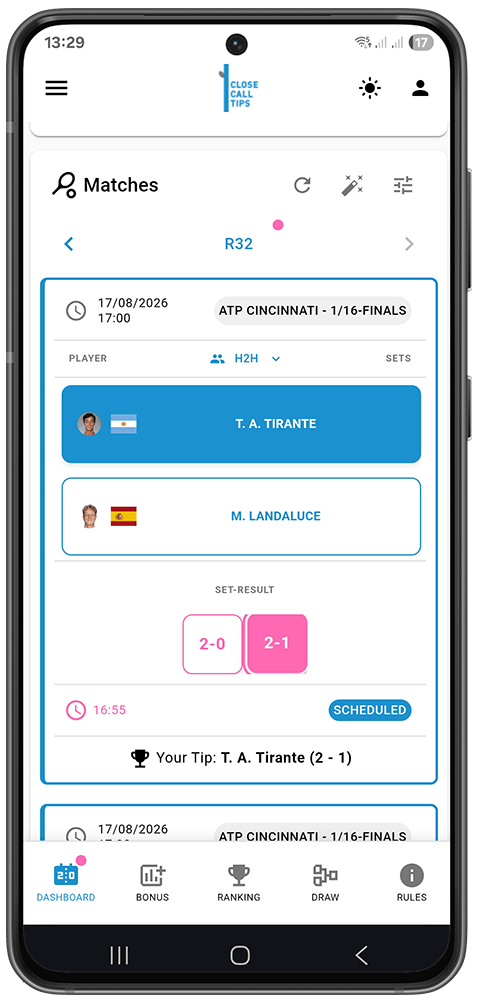
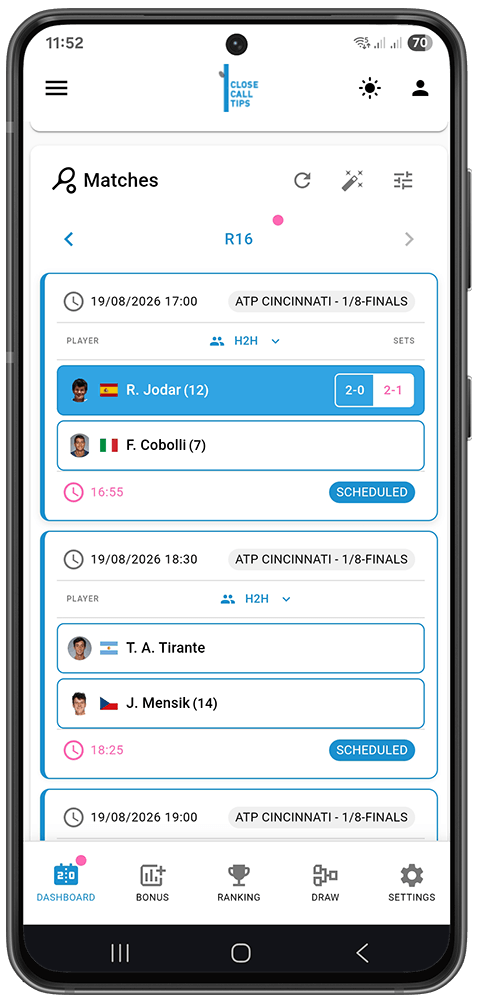
This is the main activity — predicting match outcomes before they happen. On the Dashboard, the Matches section shows the upcoming matches. Each match is shown as a Match Card.
📌 Note: It’s completely normal to see no matches on your Dashboard at first. Matches appear about two days before the tournament starts, once the draw is set — only then can you place your tips. If you’ve enabled notifications, you’ll be alerted as soon as matches become available.
Each Match Card shows:
- Date & time — when the match is scheduled to start.
- Tournament & round — the event and stage (e.g. ATP Cincinnati – 1/64-Finals).
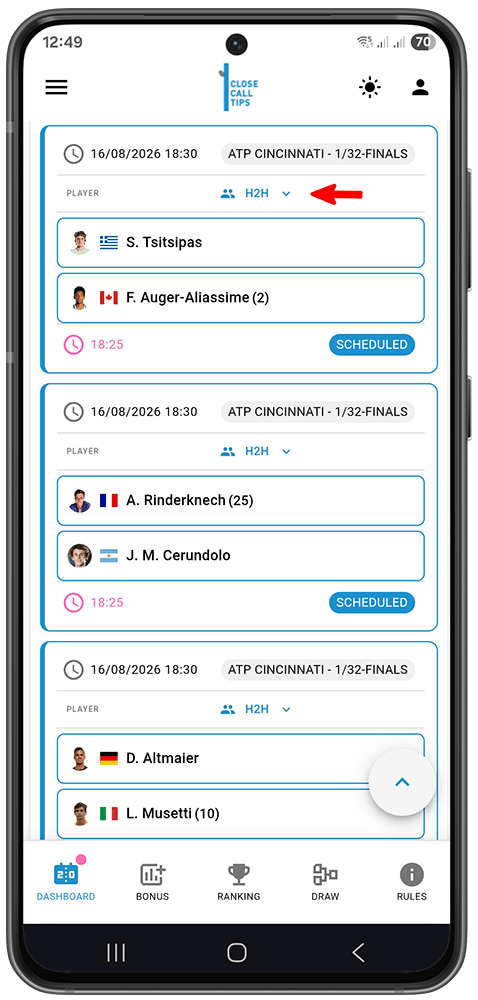
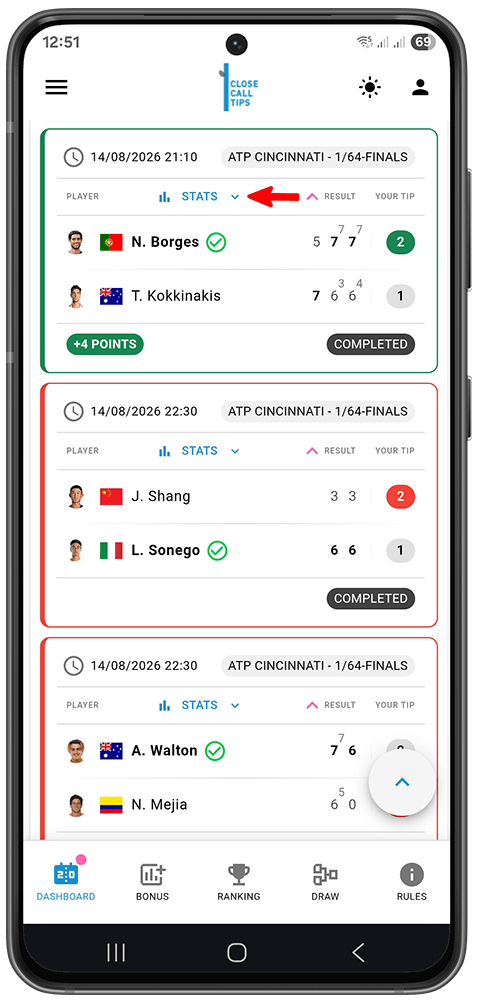
- H2H / Stats — the head-to-head record between both players; tap to expand (see Head-to-Head below). Once the match is live, this button becomes Stats and shows live match statistics.
- Player 1 — tap to predict this player as the winner.
- Player 2 — tap to predict this player as the winner.
- Deadline — the cut-off to place your tip, usually a few minutes before the match starts. Green/unlocked means you can still tip or change it; locked means the deadline has passed and your tip is final.
- Status — the match state (e.g. scheduled, live, cancelled, walkover or finished).
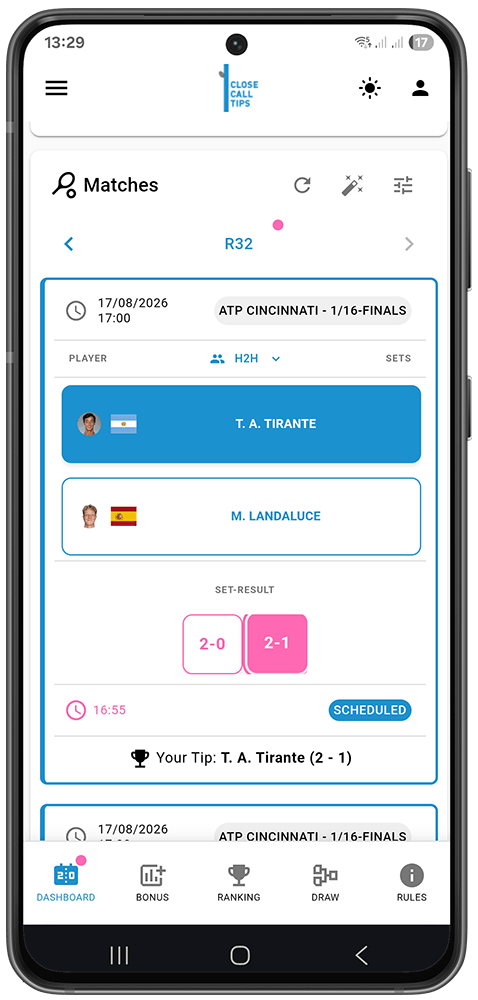
How to place a tip:
- Tap the player you think will win — their row is highlighted to show your pick.
- Select the set score — e.g. 2–0 or 2–1 in best-of-3, or 3–0 / 3–1 / 3–2 in a Grand Slam best-of-5.
- Your tip saves automatically — there’s no separate save button.
Head-to-Head (H2H)
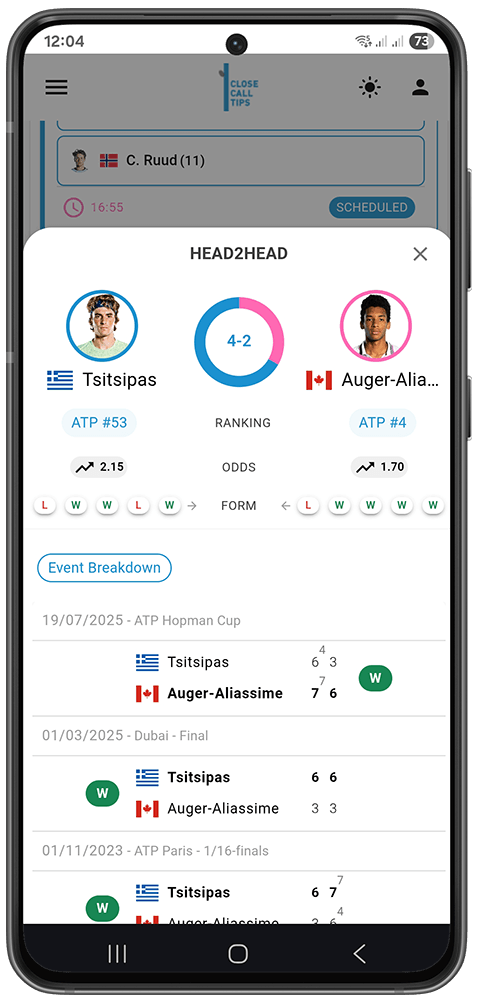
Tap H2H on a match to open the Head-to-Head drawer — a panel with real historical data about the two players. You’ll see:
- Player vs Player header — both players with photo/avatar and country flag. A centre donut chart shows the all-time H2H record (e.g. 3–2).
- Rankings — current ATP/WTA ranking for each player.
- Odds — current betting odds when available.
- Recent Form — a row of W and L chips, most recent closest to centre (green = win, red = loss).
- Recent Head-to-Head Matches — a table of previous meetings with set-by-set scores including tiebreaks; winners in bold.
Use it to check recent form, all-time record and odds, then close the drawer and place your prediction with confidence.
Live Match Statistics (Stats)
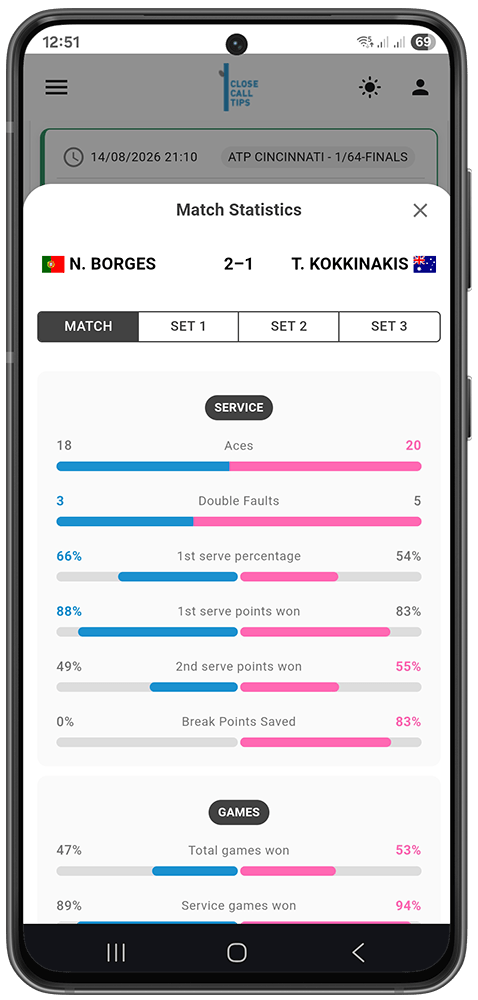
Once a match goes live, the H2H button becomes Stats . The same panel now shows live Match Statistics instead of pre-match history, so you can follow the match as it unfolds. You’ll see:
- Live score — the current set score between the two players.
- MATCH / SET tabs — switch between the stats for the whole match or a single set.
- Service — aces, double faults, 1st serve %, 1st and 2nd serve points won, break points saved.
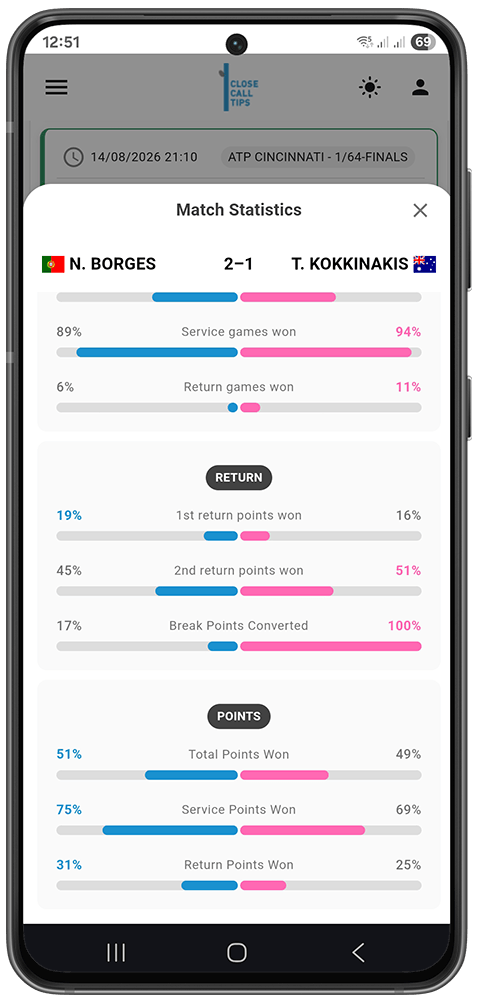
- Games — total, service and return games won.
- Return — 1st and 2nd return points won, break points converted.
- Points — total, service, return and net points won, plus unforced errors and winners.
Each stat compares both players side by side, updating live as the match plays out.
Matches Toolbar
The Matches section has a small toolbar: Refresh reloads matches and scores for the latest data, a notification dot marks rounds with open predictions still to place, and the round navigation arrows switch between rounds (R128, R64, R32…). Two tools in this toolbar are worth their own section.
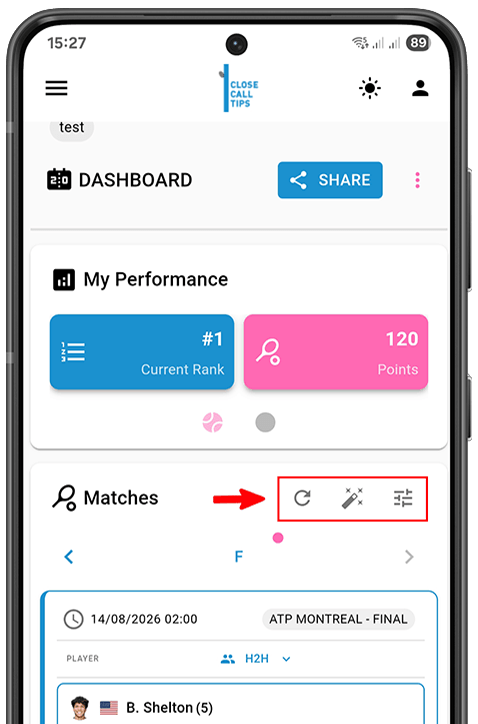
Random Tips
Don’t have time to research every match? Random Tips fills in the tips you place — automatically.
- In the Matches card, tap the Random Tips button.
- It auto-generates predictions for any matches you haven’t tipped yet (random winner and set score), and fills in the score for any match where you picked a winner but no score.
- Locked matches (deadline passed) are skipped automatically.
- The app confirms how many tips were generated.
💡 Tip: Even after using random tips, you can still edit and change each tip manually up until the match deadline.
Match Display & Filter
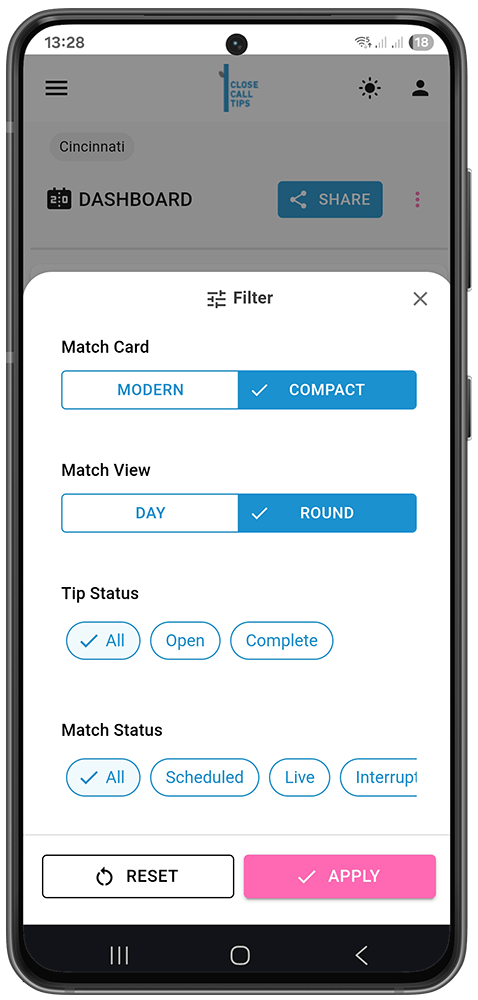
Tap the sliders icon in the top-right of the Matches section to open the Filter. Set your options, then tap Apply — or Reset to clear them.
- Match Card — switch between Modern (larger cards) and Compact (condensed rows).
- Match View — group matches by Day or by Round.
- Tip Status — show All, only Open (not yet tipped), or only Complete (already tipped).
- Match Status — show All, Scheduled, Live, Interrupted, Completed or Walkover.
Sharing Your Game
Once you’ve created or joined a game, you can share it. The Share button sits inside the game — a full button on desktop, an icon on mobile.
- Open the game you want to share.
- Tap the Share button .
- Your device’s native share sheet opens.
- Share via WhatsApp, iMessage, SMS, email, Copy link, or any other app your device supports.

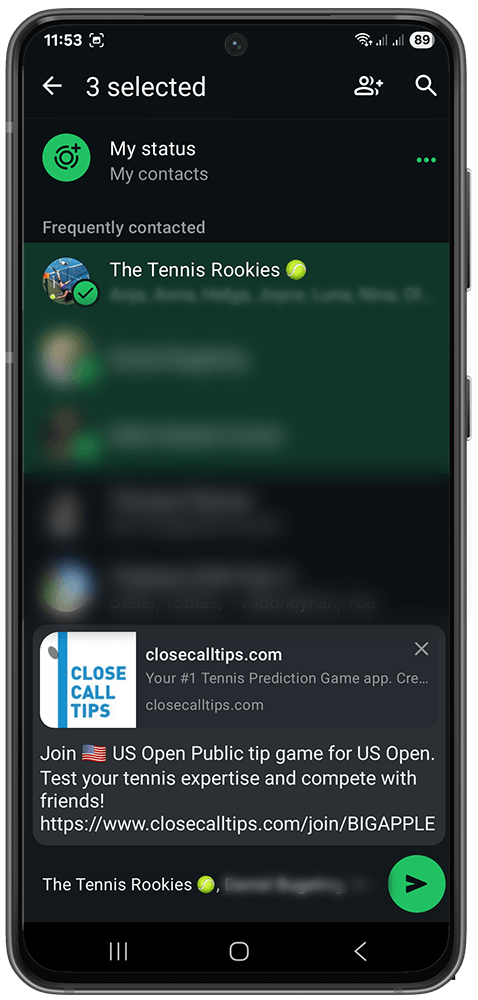
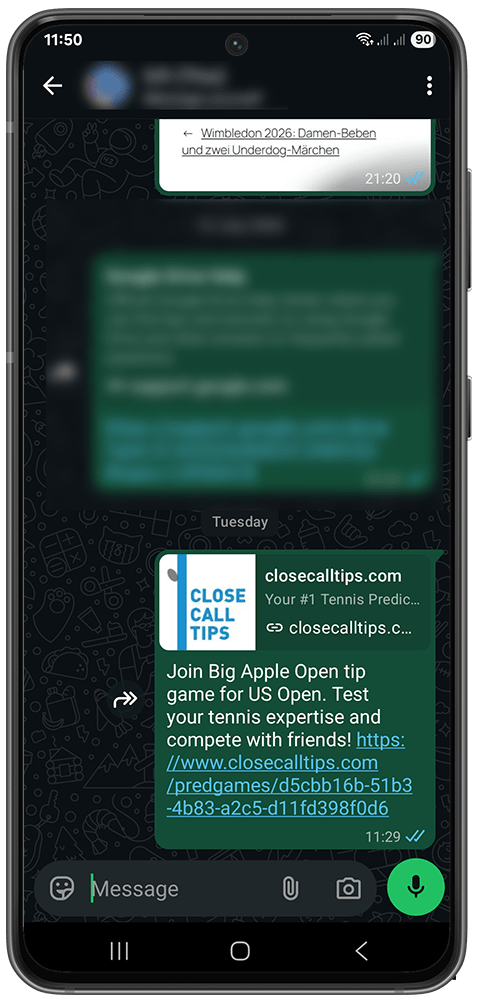
💡 Tip: The share link has the invitation code baked in — friends who open it land straight on the join screen.
📌 Note: On desktop browsers without native sharing, the link is copied to your clipboard instead.
Leaving a Game
If you no longer want to take part, you can leave at any time.
- Open the game.
- Open the game menu (three-dot menu ⋮ or the settings icon).
- Select Leave Game and confirm.
What happens when you leave:
- Your membership is deactivated — you no longer appear on the leaderboard.
- Any tips you placed stay in the system but no longer count.
- Leaving is permanent — there’s no rejoin button; you’d need a new invitation.
⚠️ Important: Game creators can’t leave their own game directly. First transfer ownership to another active member (see Settings (Admin) → Transferring Ownership), then leave.
Bonus
The Bonus section is about predicting how far players go in the tournament as a whole — separate from your match tips, and worth a lot of extra points. The points for each bonus are set by the game admin (see Creating a game → Bonus Tips).
Bonus categories
- Tournament Winner — the player you think wins the whole tournament.
- Who reaches the final? (Finalists) — the two players you predict will reach the final.
- Who reaches the semi-finals? (Semi-Finalists) — the four players you predict will reach the semi-finals. The draw is split into four quarters (Q1–Q4), and you pick one player per quarter.
- Most Aces (Grand Slams) — the player you expect to hit the most aces.
- Most Double Faults (Grand Slams) — the player you expect to hit the most double faults.
📌 Note: Just like match tips, the bonus tips may not be available yet when you first open this section. They become available once the official tournament draw is released and all player seedings have been confirmed — so check back closer to the tournament start. If you’ve enabled notifications, you’ll be alerted as soon as the bonus tips are ready (see Notifications).
How to place your bonus tips:
- Open the Bonus tab .
- Work through the categories from top to bottom and make your picks.
- Your selections save automatically.
📌 Note: Because the app follows the real draw, you can only pick combinations that can actually happen — you don’t have to worry about backing two players who could never meet in that round. The app only offers valid pairings.
💡 Tip: Start at the top. When you pick your Tournament Winner, that player is automatically pre-filled into the rounds below (they have to reach those stages to win the title). You can still adjust the lower rounds afterwards.
How bonus points work
The game admin defines the points, but the logic is always the same:
- Winner, Finalists & Semi-Finalists — you earn points for each player you correctly predicted.
- Most Aces & Most Double Faults — the admin sets a maximum value (0–20, in steps of 5). At the end of the tournament, if your picked player finishes in the top 5 of that ranking, you earn points based on their position — the higher the position, the more points. The exact points per rank are shown in the app and scale with the maximum the admin set (for example, with a maximum of 10: 1st +10, 2nd +8, 3rd +6, 4th +4, 5th +2). If your player isn’t in the top 5, that pick scores nothing.
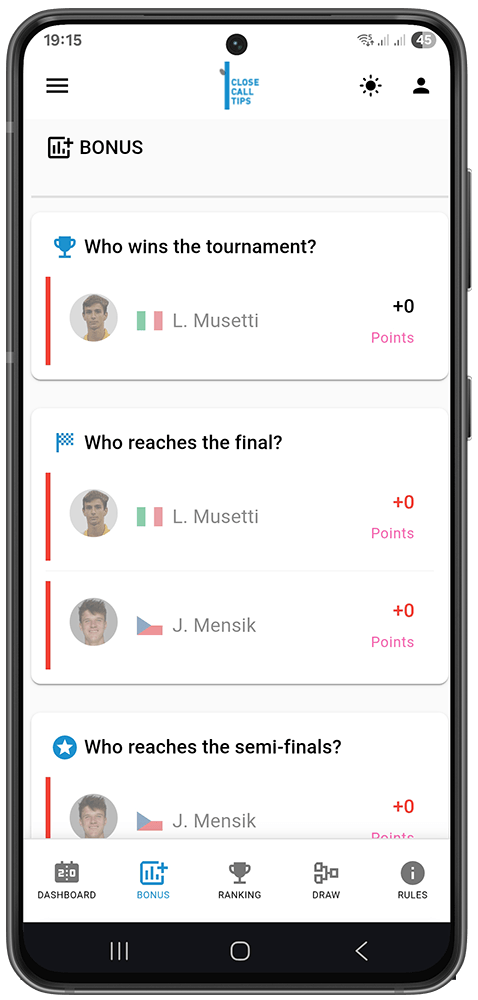
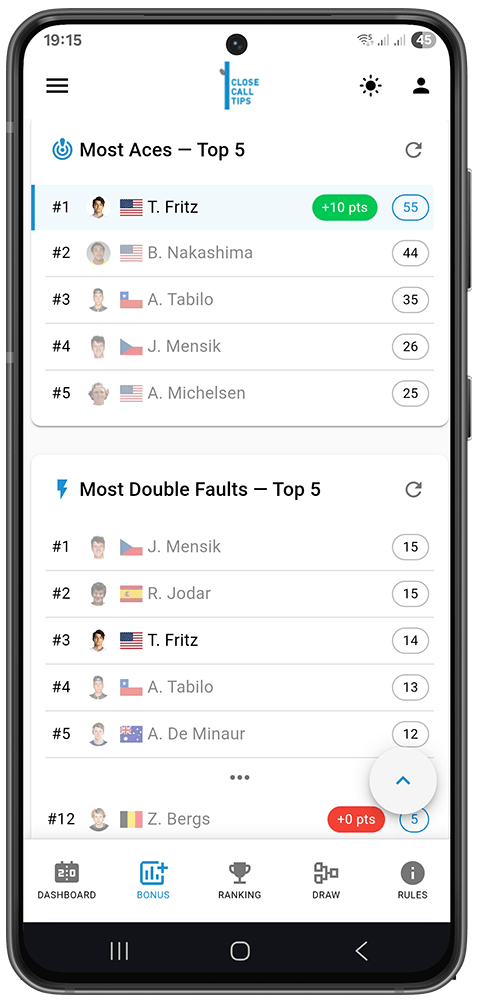
📌 Note: Players who are already out of the tournament appear greyed out in the selection lists, so you can see at a glance which of your picks are still alive.
Deadline
A countdown at the top of the Bonus section shows how much time is left to place or change your bonus tips.
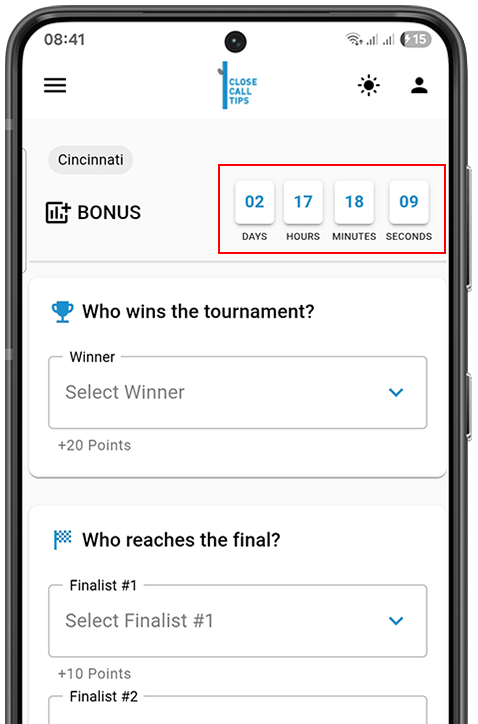
💡 Tip: Turn on notifications so you don’t miss the bonus deadline.
Ranking
The Ranking menu shows how everyone stacks up.
Leaderboard
- Rank — position (1st, 2nd, 3rd…), with gold/silver/bronze trophies for the top 3.
- Nickname — how each player appears.
- Points — total earned so far.
- Trend indicators — small arrows show movement up or down since the last update.
Your own row is highlighted so you can find yourself quickly. The leaderboard updates in real time as results come in.

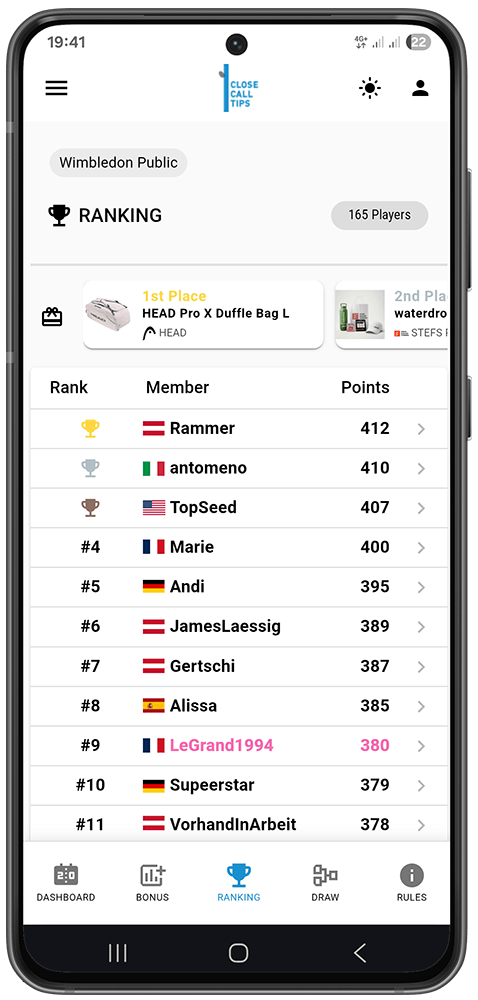
💡 Tip: Select your country in your profile to show your flag next to your name on the leaderboard (see Profile & Account → Account).
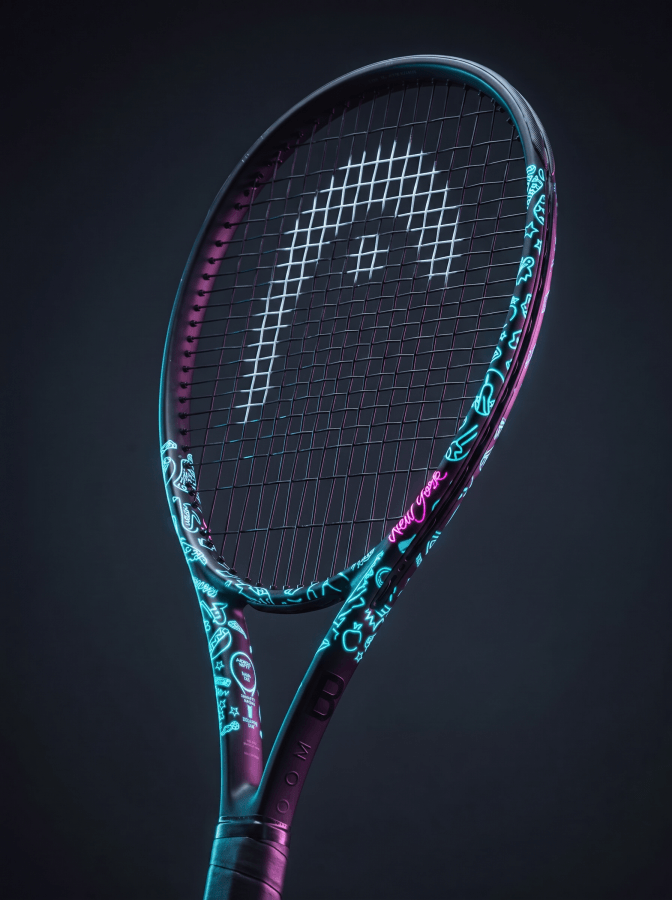
Prizes (Public Games)
In public games, the prizes are shown right at the top of the Ranking — so every participant sees what they’re playing for before scrolling the standings. Tab the prize for details.
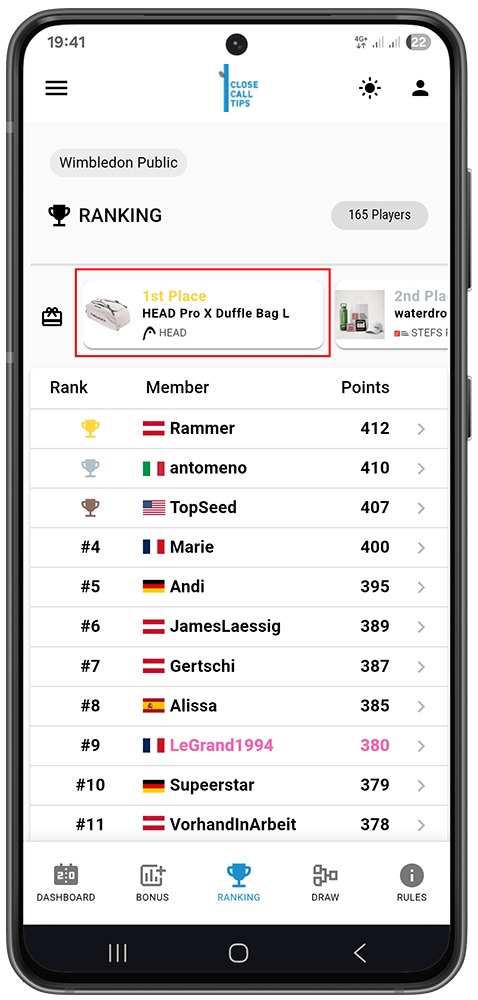
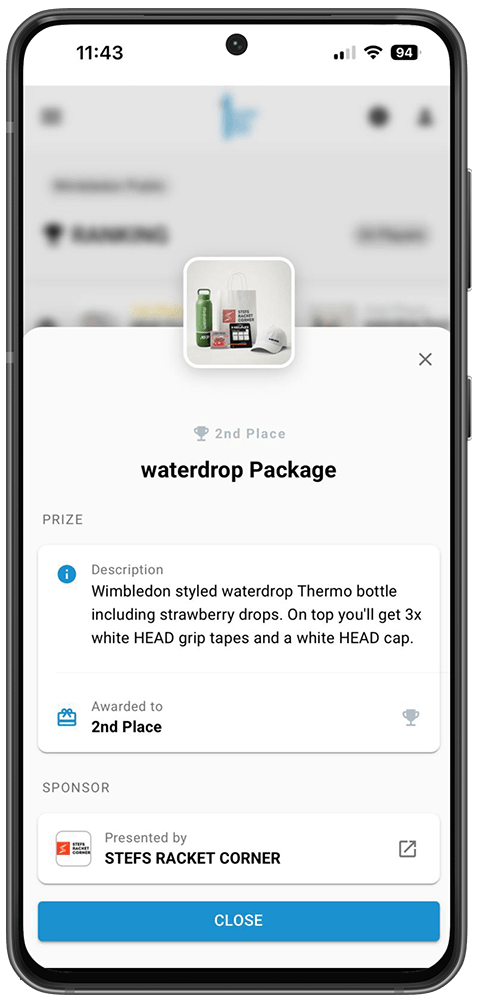
Here’s a taste of what we’ve given away in past public games:

HEAD Austria GmbH


Stefs Racket Corner
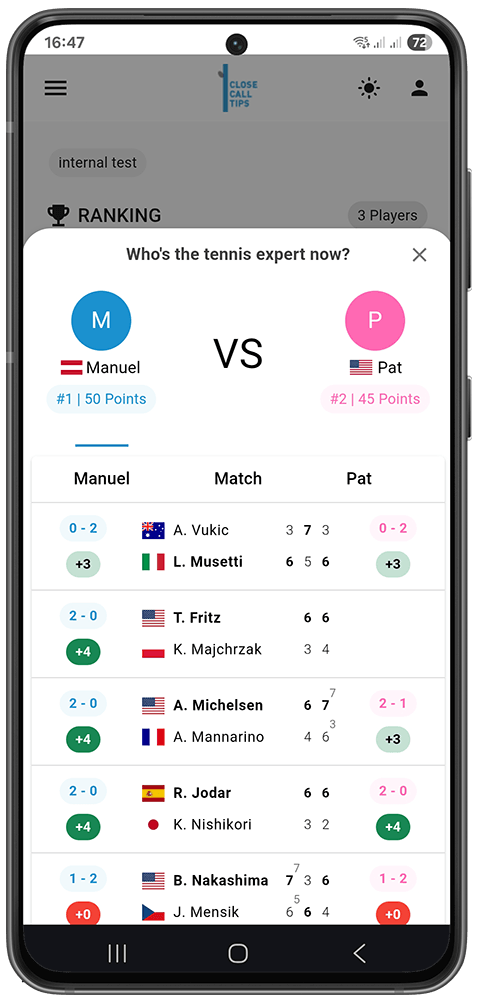
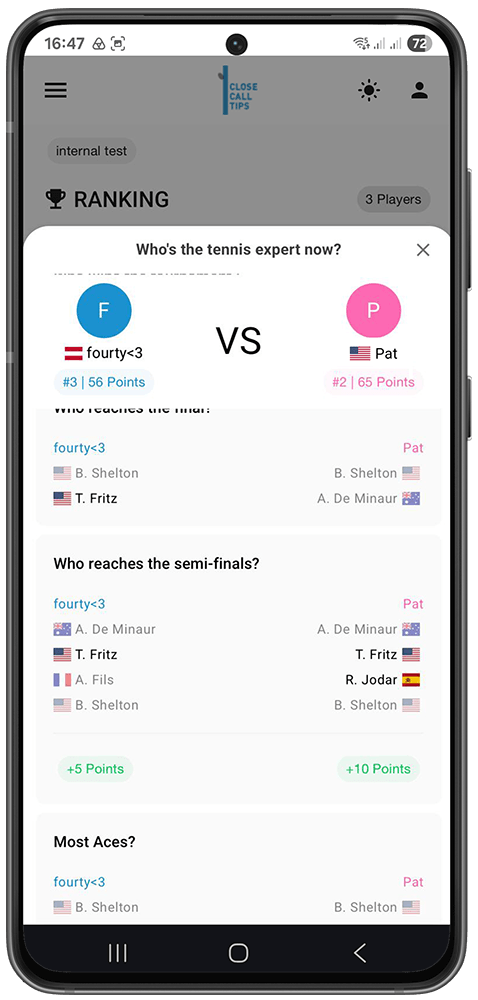
Head-to-Head Comparison (M2M)
Want to see how your predictions stack up against another player’s?
- On the leaderboard, tap another player’s row (not your own).
- A panel slides up (mobile) or a dialog opens (desktop) with the head-to-head comparison.
- See side-by-side who each of you predicted for every match — and who was right. A summary of accuracy, points and correct scores appears at the top.
Draw
Tournament Bracket
The Draw menu shows the full tournament bracket. You see the complete draw from the first round onwards, and as matches finish the winners advance through the bracket into the next round (e.g. into the Round of 16). Use it to follow a player’s path through the tournament at a glance.
You can swipe, use the arrows or choose the round from the R-dropdown to change the round.
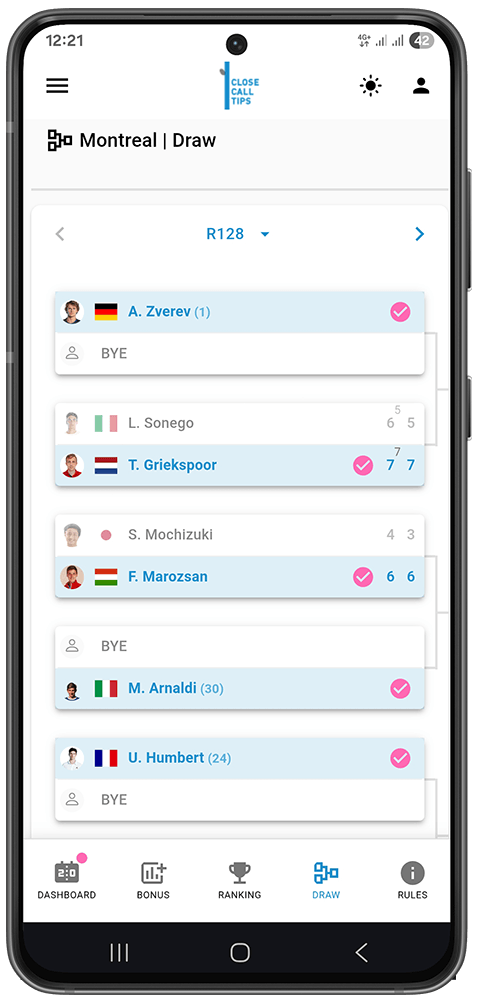
📌 Note: The Draw is for viewing only — you place your tips in the Dashboard, not in the bracket.
Settings (Admin)
The Settings menu is only available to game admins. It’s where you manage the game after it has been created.
Configuring & Editing the Game
You set the scoring when creating the game (see Getting Started — Game Settings Explained). You can still edit those settings afterwards — but only before the tournament starts and before anyone places a tip.
Once the tournament has begun or any tips have been placed, scoring settings are locked. You can still update:
- Max Participants.
- Allow Late Join.
Transferring Ownership
If you no longer want to be the game owner, you can hand ownership to another active member. This is also the only way for a creator to eventually leave the game.
- Go to game settings.
- Find Transfer Ownership .
- Select the new owner and confirm.
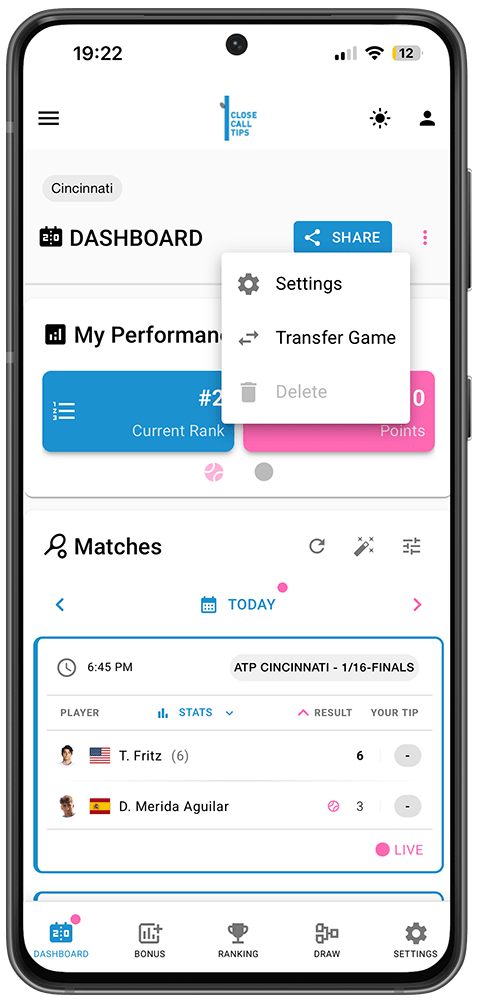

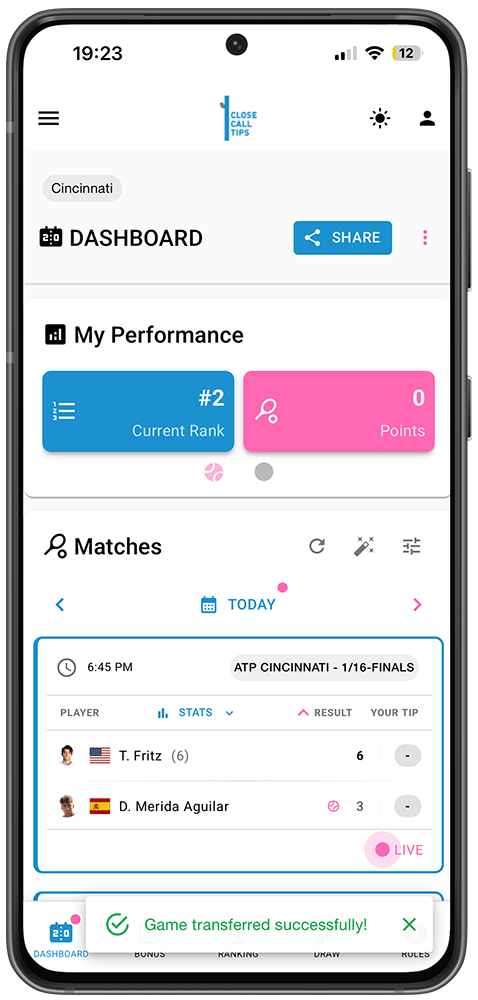
📌 Note: This is also the first step if you eventually want to leave the game yourself — you must transfer ownership to another active member first.
Renewing the Invitation Code
You invite members by sharing your invitation link (found under Settings → Invite Members). The link is valid for 30 days and renews automatically — you can see the expiry date right below it. It ends with the join code and looks something like https://www.closecalltips.com/join/
BDB4B931.
As an admin, you can also generate a fresh link anytime by tapping New Link.
⚠️ Important: Renewing the code stops new people from joining through the old link — but it does not remove anyone who has already joined.
Deleting a Game
As the creator, you can delete a game — but only before it has started. Once the tournament is under way, deleting is no longer possible (use Archiving instead).
⚠️ Warning: Deleting a game is permanent. All its data is removed and cannot be recovered.
Rules
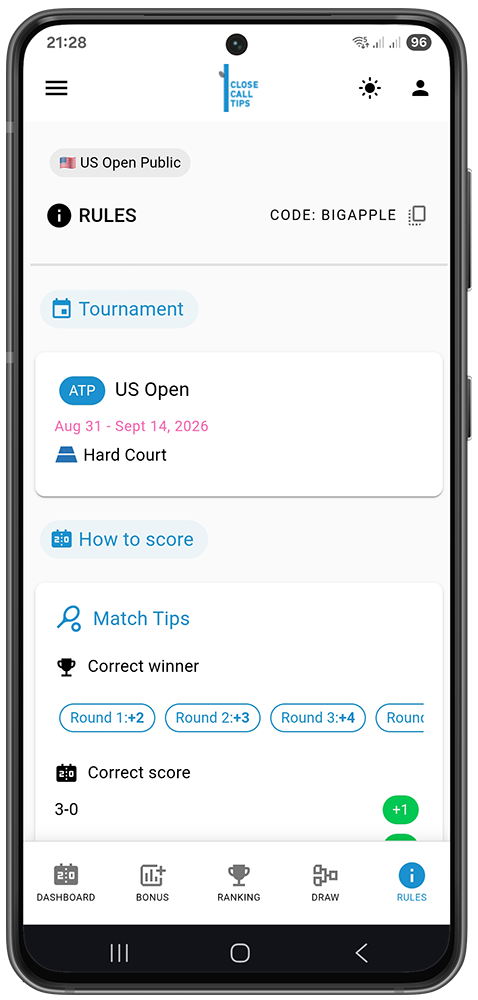
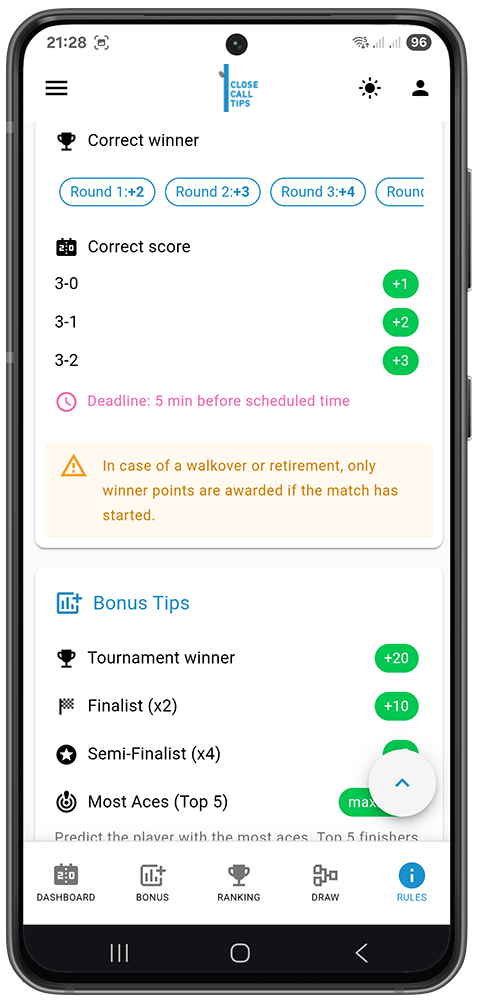
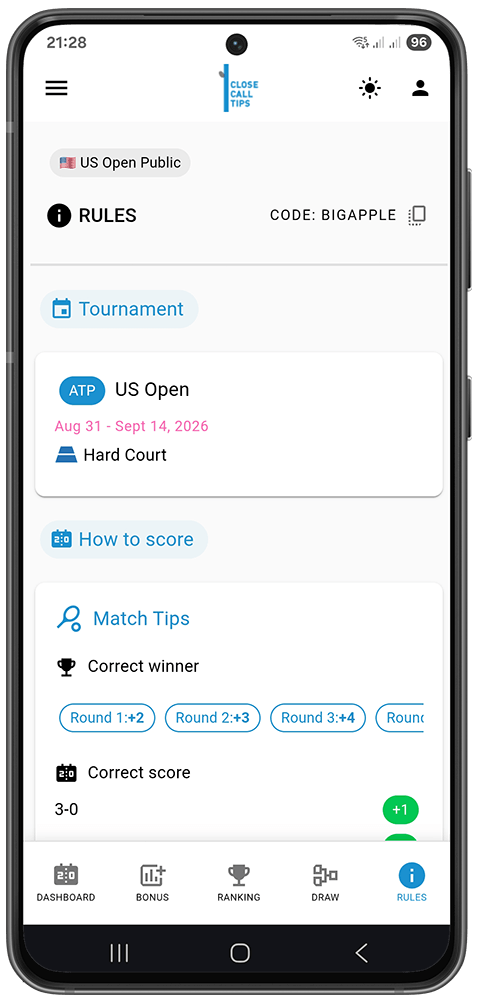
Viewing the Configured Rules
The Rules menu (bottom-right of the menu bar) shows the exact scoring and settings the admin chose for this game, so every participant can see how points are awarded.
Profile & Account
Tap the person icon in the top-right corner (when logged in) to open your account area. It has three tabs along the bottom: Profile , My Games and Security .
Profile Tab
The Profile tab is organised into three cards: Account, Preferences and Layout.
Account
- Nickname — your global display name. Tap the edit icon to change it.
- Email — your registered email address, with a Verified badge once it’s confirmed.
- Country (optional) — pick your country to display your flag beside your name; it’s shown in Rankings and the M2M comparison. Tap the × to clear it.
- Member Since — the date you joined.
Preferences
- Default Language — choose the language the app is displayed in. It updates immediately.
- Push Notifications — turn tip reminders on or off (system-level setup is described below).
- Copy Tips — mirror your tips to all your games in the same tournament.
- Copy Bonus Tips — the same as Copy Tips, but for your bonus predictions.
⚠️ Warning: When Copy Tips is on, existing tips in your other games are overridden. Make sure you’re happy to replace them before enabling it.
Layout
Set how matches are shown by default across all your games:
- Match Display Style — choose Modern (larger cards) or Compact (condensed rows).
- View Matches By — group matches by Day or by Round.
Appearance (Light / Dark)
To switch the app’s appearance, tap the sun/moon icon in the top navigation bar. It cycles through Light , Dark and Auto (Auto follows your device setting). This is available on every screen, not only here.
At the bottom of the Profile tab, Sign Out logs you out of the app.
Notifications
Notifications work in two steps:
- first enable Push Notifications in your Profile → Preferences
- allow Notifications at the system level (iOS/Android) as described below.
Enabling notifications at the system level
Even if you’ve turned Push Notifications on above, your phone or browser may still block them at a higher level.
Choose your device:
iPhone & iPad (iOS)
On iPhone & iPad (iOS 16.4 or later)
⚠️ Important: For push notifications on iOS, closecalltips must first be installed to your Home Screen (see Installing the App).
After installing:
- Open Settings → Notifications.
- Find closecalltips and toggle Allow Notifications on.
💡 Tip: If closecalltips doesn’t appear in the Notifications list, it hasn’t been installed as a PWA yet — install it to your Home Screen first.
Still not working? Check your browser permissions
If you previously denied permission, the browser silently blocks them and the in-app toggle alone won’t fix it.
- iPhone / iPad (Safari): Settings → Notifications → closecalltips → Allow Notifications. If it’s not listed, remove the app from your Home Screen, reinstall via Safari, open it, and accept the prompt.
- Desktop (Chrome, Edge, Firefox, Safari): visit closecalltips.com → click the padlock/info icon → set Notifications to Allow (or remove the Block) → reload.
Android
On Android (Chrome)
- Open Settings → Notifications → App notifications.
- Find closecalltips (or Chrome, if you haven’t installed closecalltips as a standalone app).
- Tap Notifications and toggle closecalltips notifications on.
Still not working? Check your browser permissions
If you previously denied permission, the browser silently blocks them and the in-app toggle alone won’t fix it.
- Android (Chrome): open Chrome → go to closecalltips.com → tap the icon on the left of the address bar → Permissions → Notifications → set to Allow → reload.
- Desktop (Chrome, Edge, Firefox, Safari): visit closecalltips.com → click the padlock/info icon → set Notifications to Allow (or remove the Block) → reload.
My Games Tab
The My Games tab lists every game you’re in. Use the search box to filter by name. Each entry shows:
- Game Name — with a padlock for private games or a globe for public games. A green check means the game is active; a red cross means it has finished.
- Tournament — which tournament the game is based on.
- My Ranking — your current position and the number of participants (e.g. #2 of 3).
- Actions — tap View to open the game.
Security Tab
The Security tab is where you manage your login and remove your account.
Changing Your Password
- Open the Security tab.
- Enter your current password, then choose and confirm a new one.
- Save to apply the change.
Deleting Your Account
If you want to permanently remove your account, you can do so from the Security tab.
⚠️ Warning: This cannot be undone. All your data — games, tips, statistics — is permanently deleted.
- Open the Security tab.
- Scroll down and tap Delete Account.
- Read the warning in the confirmation panel carefully.
- Type your email address exactly as on your account into the confirmation box.
- Once it matches, the Delete Account button activates — tap it.
What happens after deletion
- You’re logged out immediately and redirected to the home page.
- Your account and all associated data are permanently removed. No recovery is possible.
💡 Tip: If you just want a break, you don’t need to delete — your account waits for you whenever you return.